SMTP
Before you complete these steps, import and verify your domains on the Configuration page as described in User Added Domains
For an Inline/SMTP message source, you need to set up your mail host to send traffic to Secure Email Threat Defense. This involves changing your DNS MX record and DNS TXT record. The steps will vary depending on your provider
-
To allow Secure Email Threat Defense to receive incoming email on behalf of your domain, update your DNS MX record to point to your Secure Email Threat Defense environment. The destination depends on where your Secure Email Threat Defense instance is hosted.
Table 1. DNS MX Record Settings by Region
| Environment | DNS Record |
|---|---|
| North America | mx.us.etd.cisco.com |
| Europe | mx.eu.etd.cisco.com |
| India | mx.in.etd.cisco.com |
| Australia | mx.au.etd.cisco.com |
| United Arab Emirates | mx.ae.etd.cisco.com |
| Beta | mx.beta.etd.cisco.com |
| Government | mx.usgov.etd.cisco |
-
Configure your domain to enable Secure Email Threat Defense to deliver incoming email to mailboxes. IP addresses for each region are mentioned below, however we recommend retrieving the updated list of IPs using the corresponding host name.
Example: dig host.<region>.etd.cisco.com retrieves the corresponding IPs for the region.
Table 2. Regional Host Names and IPs
| Region/Environment | Host Name | IPs |
|---|---|---|
| North America | host.us.etd.cisco.com |
|
| Europe | host.eu.etd.cisco.com |
|
| India | host.in.etd.cisco.com |
|
| Australia | host.au.etd.cisco.com |
|
| United Arab Emirates | host.ae.etd.cisco.com |
|
| Beta | host.beta.etd.cisco.com |
|
| Government | host.usgov.etd.cisco |
|
-
Configure your DNS TXT record
Table 3. TXT Record Settings by Region
| Region/Environment | TXT Record |
|---|---|
| North America | v=spf1 include:spf.us.etd.cisco.com -all
|
| Europe | v=spf1 include:spf.eu.etd.cisco.com -all
|
| India | v=spf1 include:spf.in.etd.cisco.com -all
|
| Australia | v=spf1 include:spf.au.etd.cisco.com -all
|
| United Arab Emirates | v=spf1 include:spf.ae.etd.cisco.com -all
|
| Beta | v=spf1 include:spf.beta.etd.cisco.com -all
|
| Government | v=spf1 include:spf.usgov.etd.cisco -all
|
-
In Secure Email Threat Defense, go to Configuration > Analysis configuration > Domains > Imported Domains and click Update List. Verify that the expected domains are imported and can accept traffic.
Configure Outgoing Message Traffic
For SMTP/Inline message sources, Outgoing messages can be analyzed and then dropped if found to be Threats. Configuration options are accessible from Configuration > Mail flow configuration.
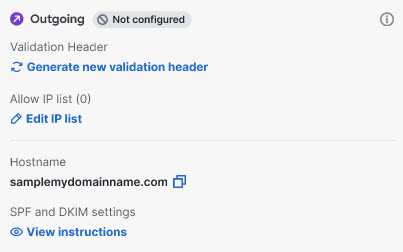
The Host name to send traffic to for your region is indicated in the panel, and are listed below.
Table 3. Regional Outgoing Host Names
| Region/Environment | Host Name |
|---|---|
| North America | out.us.etd.cisco.com |
| Europe | out.eu.etd.cisco.com |
| India | out.in.etd.cisco.com |
| Australia | out.au.etd.cisco.com |
| United Arab Emirates | out.ae.etd.cisco.com |
| Beta | out.beta.etd.cisco.com |
At least one type of security validation must be enabled for outgoing mail: Validation Header or Allow IP list. If both are configured, at least one is required to pass for the mail to be sent. If all configured validations fail, the outgoing mail will be rejected.
Adding a Validation Header
To add a validation header:
-
Go to Configuration > Mail flow configuration > Message traffic.
-
In the Message source (SMTP) Outgoing section, Click Generate new validation header to generate a header. The header will take the form header: value.
-
Copy the validation header secret and create a mail flow rule from your outgoing mail source to add the generated X-CSE-ETD-OUTBOUND-AUTH header for all outgoing email to Secure Email Threat Defense.
-
Return to Secure Email Threat Defense and click Enable Validation to enable the validation header.
Rotating a Validation Header
Click the rotation icon to generate a new validation header for outgoing messages. The existing header will remain valid for 30 minutes, allowing time to update your systems. Messages without a valid header could be rejected ensure your systems are updated within 30 minutes.
Adding an Allow IP List
Add the list of IP addresses you will use to send outgoing traffic from your domain to Secure Email Threat Defense. Updates to your list may take several minutes to take effect.
-
Go to Configuration > Mail flow configuration > Message traffic.
-
In the Message source (SMTP) Outgoing section, click Allow IP List.
-
Click Manage IP List. Add your list of IP addresses from which you will send outgoing traffic to Secure Email Threat Defense.
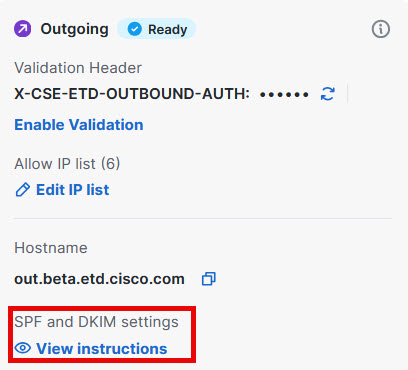
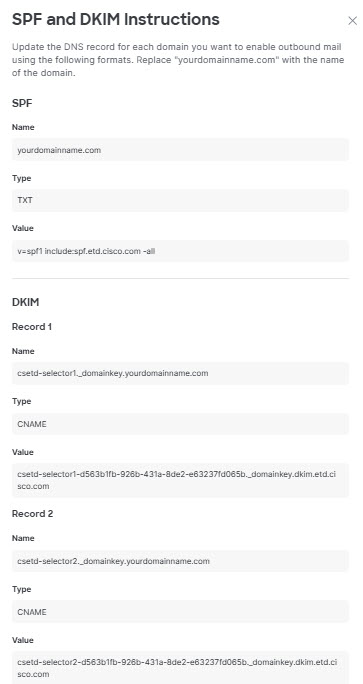
SPF and DKIM Signing
SPF and DKIM Signing instructions are shown in the Secure Email Threat Defense UI. These guidelines help you create domain-level DKIM signing keys and configure necessary DNS records. Update the DNS record for each domain you want to enable outbound mail analysis for, using the formats shown when you click View Instructions.