Bulk Move and Reclassify Messages
Use bulk remediation to move or reclassify more than 100 items. This allows you to move or reclassify all messages in your search results up to 50,000 messages at a time.
-
Use the filter panel, search bar, and calendar control to find the messages you want to move or reclassify. For example, you may want to filter by subject or search by sender.
-
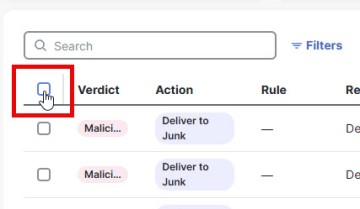
Select the checkbox in the top left corner of the messages list.
-
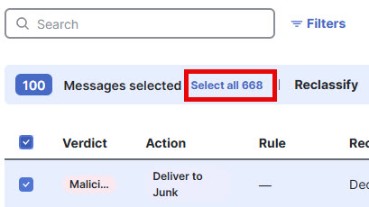
Click Select all xxx to select all messages in your filtered results.
-
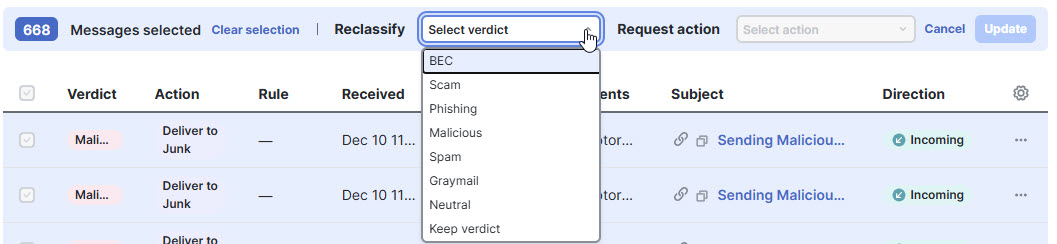
Select a verdict from the Reclassify drop-down menu. You can reclassify the messages as BEC, Scam, Phishing, Malicious, Spam, Graymail, or Neutral, or you can select Keep verdict.
-
Select an action from the Request action drop-down menu. You can Move to Junk, Move to Trash, Move to Inbox, Move to Quarantine, Delete, or you can select Do Not Move.

-
Click Update to apply the new classification and take action on the messages.
-
In the Confirm Request dialog, click Continue.
A banner indicates it could take a while to complete your request. The Verdict column shows the new classification, and the Action column shows an indicator that a move has been requested for the selected items. The move request runs in the background. Once the action is finished, the Action column is updated with the action that was taken. Check the Notifications (bell) menu for any remediation errors.