Policy Exceptions
You can create policy exception rules by senders or recipients. These rules act as exceptions to your base policy. Rules are applied in a ranked order; drag and drop the items in the list to reorder them.
Rules do not automatically apply to sub-domains. Domains are matched exactly as indicated in a rule.
Policy Exception rules can take precedence over Microsoft Safe Sender handling. If a message matches both a Microsoft Safe Sender rule and an applicable Policy Exception that specifies an action for the message’s verdict category, Secure Email Threat Defense applies the Policy Exception action instead of the Safe Sender allowance. For more information, see Microsoft Allow Lists and Safe Senders.
Create exceptions to your base policy by creating policy exception rules.
-
Go to Configuration > Policy configuration.
-
Select the tab for the direction you want the rule to apply to. For these steps we’ll use incoming as an example.
-
Click the New incoming rule button.
-
Create a Rule name and a Short description for the rule.
-
Under Apply to, select Sender or Recipient.
-
Click the category of item you want to add, then enter the senders or recipients you want the rule to apply to.
-
For sender rules, this can be in the form of email addresses, domains, IP addresses, or CIDR block.
-
For recipient rules, this can be an email address, domain, or Policy Exceptions.
-
-
Select actions you want to apply as exceptions to your base policy. For example, you may want to move all messages from a certain sender to trash, regardless of the verdict.
-
Click Save.
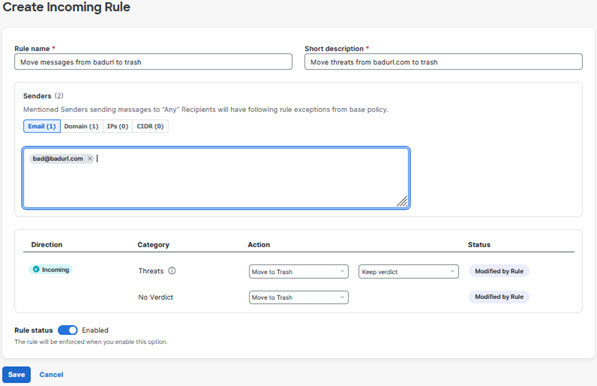
Your rule is created.
Supported Microsoft Groups
Secure Email Threat Defense's integration with Microsoft groups supports the following:
-
Microsoft 365 Groups
-
Security Groups
-
Mail-enabled security groups
-
Distribution groups
Dynamic distribution groups are not supported.