Mail Flow Configuration: Gateway Mode
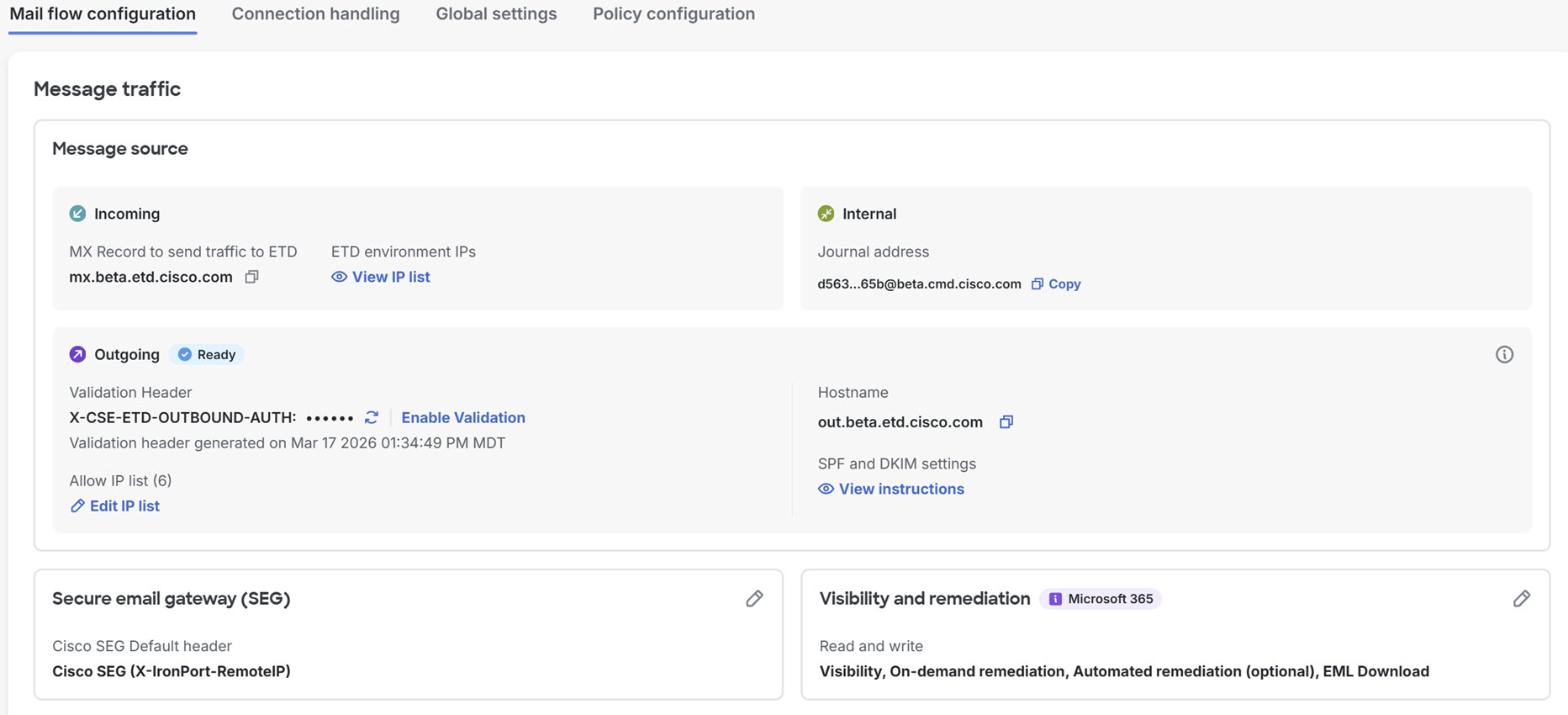
The Mail flow configuration page shows your message sources and Microsoft 365 visibility, and information related to your domains.
Message Traffic
The Message traffic panel houses settings for message sources and Microsoft 365 authentication and visibility. Use this panel to adjust your SEG header, Microsoft visibility, and Outgoing Allow IP list and SPF and DKIM settings.
Domain Management
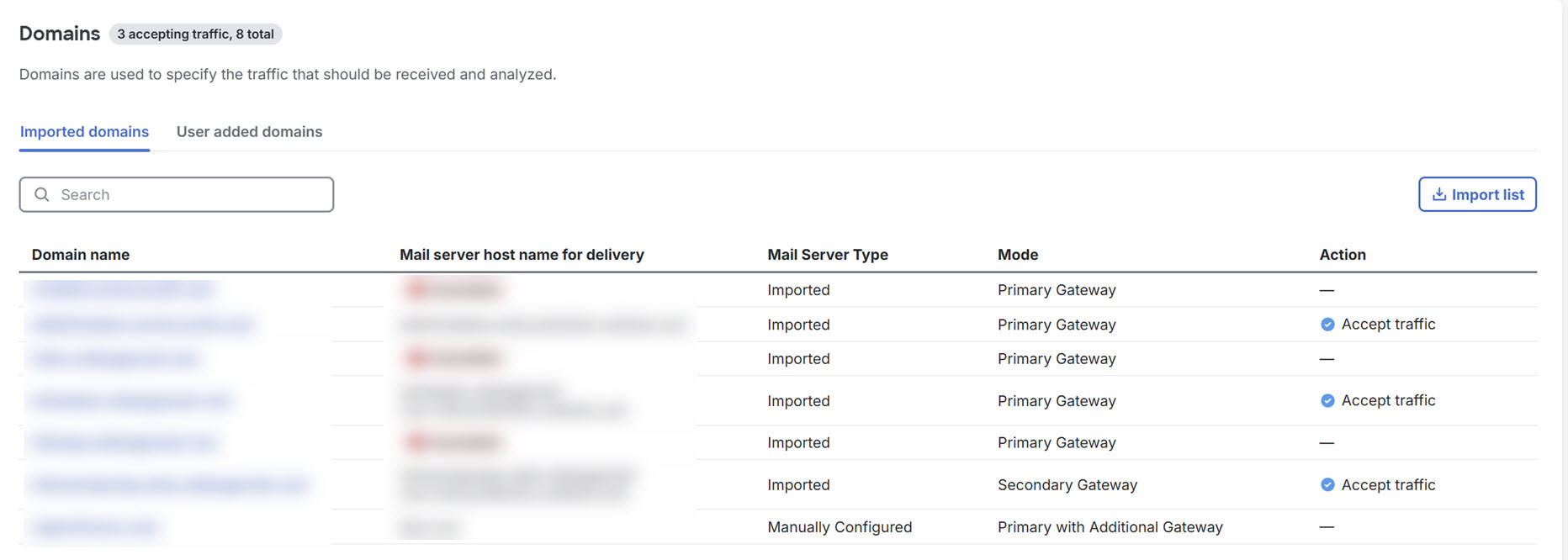
The Domains panel lists your domains. You can configure your mail flow for each domain separately. Click the row of the domain to be taken to the configuration workflow for that domain.
Change Your Mail Flow Configuration
When you initially set up Secure Email Threat Defense in Gateway Mode, the default setup is Primary Gateway Mode. You can change this configuration for each domain. To change your configuration:
-
Go to Configuration > Mail flow configuration > Domains
-
If the domains list is empty, click Import list to import your domains, or add domains as described in User Added Domains.
- Click the domain you want to configure. This takes you to the Domains Settings page, which shows you the current settings.
-
Click the Edit configuration button to make adjustments to your mail flow. Once you have selected the mail flow you want, click Save.