How can I contact customer support?
In-product customer support management
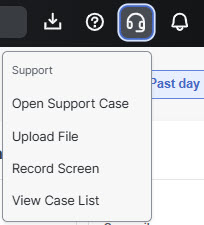
You can create and manage support cases directly in the Secure Email Threat Defense UI from the Support (headset) menu. You can:
-
Open a support case
-
Upload a relevant file to your case
-
Record your screen to capture your activity for troubleshooting purposes
-
View a list of your cases
Open a support case
To open a support case from the Support (headset) menu:
-
Select Support > Open Support Case.
-
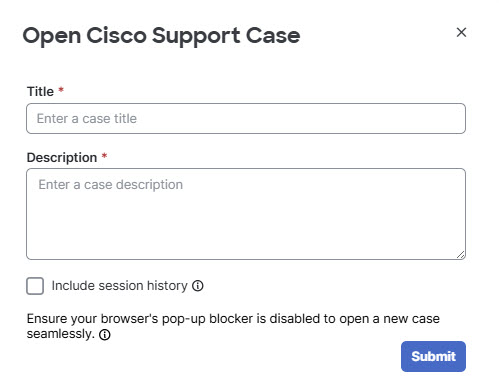
Enter a title and description for your case.
-
Select Include session history if you want to include the pages you've visited during the session leading up to your case creation.
-
Click Submit.
You are redirected to the Cisco Support Case Manager page to create your case. Once you have created the case, return to Secure Email Threat Defense to upload any related files.
Record Screen
You can record your screen to include evidence for your case. This can help customer support easily see the issue you are encountering.
-
Select Support > Record Screen.
-
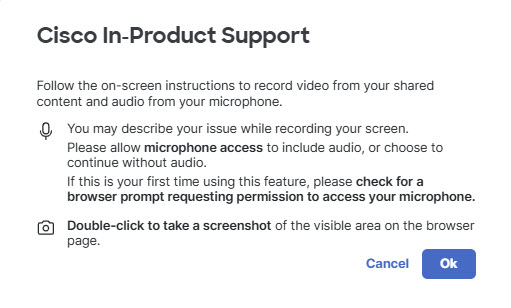
A pop-up window opens. Review the instructions, then click OK.
-
The Cisco In Product Support Screen Recording window opens. Follow the prompts to allow access to your browser and microphone.
-
Click Share, then walk through your issue. When you are finished, click Stop Sharing.
-
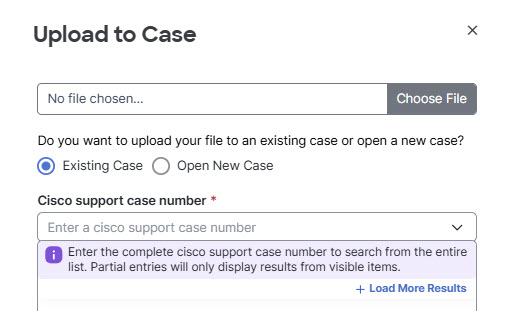
The Upload to Case window opens. Follow the steps in Upload a File to a Case to upload your file.
Upload a File to a Case
You can upload recorded videos and images to an existing case, or create a new case within the upload process. We recommend attaching the file before selecting the case number.
-
Select Support > Upload File.
-
In The Upload to Case modal, click Choose File and locate the image or screen recording you want to attach to your case. If you just made the recording, it is may already be attached.
-
Select Existing Case if your case already exists, or Open New Case if you are creating a new case.
-
For an existing case, select your Cisco support case number, and then click Upload.
-
For a new case, click Upload. You are redirected to the Cisco Support Case Manager page to create your case.
Contact support directly
Alternatively, you can contact support using any of the following methods:
-
Open an online support case: https://www.cisco.com/c/en/us/support/index.html
-
Email TAC@cisco.com
-
Call Cisco TAC at any of the worldwide phone numbers found here: https://www.cisco.com/c/en/us/support/web/tsd-cisco-worldwide-contacts.html
Note: To open a case, your Secure Email Threat Defense contract must be linked to your cisco.com account. If you do not already have a cisco.com account, go here to create one.